Move your customer base one ready group at a time.
We plan the move around your customers and the service they have now, and our migration tools bring their setup across. A pilot group tests the plan; each group after it moves on its confirmed port dates where its numbers port.
Today
Your customers, wherever their service runs now
- Open-source PBXs
- RingCentral, 8x8 and other hosted services
- Other white-label platforms
- Self-hosted PBXs on site
Our migration tools bring their setup across
The pilot
Moves first, to test the plan.
- Rivera HouseholdHome line
- Maple & Main BakeryHosted
- Canyon FreightPBX on a SIP trunk
Ready before its port dates
- Numbers
- Equipment
- Routing
- Customers
Once it meets the criteria you agreed
Then group by group
Each on its confirmed port dates, ready the same way.
What moves, and what can stay.
Each customer takes one of three paths. A business can keep its PBX on a trunk for now and move to hosted seats later.
- Its numberMoves here
- Their handsetsStays on site
- Your adapterNew
A household
A home line, with its own portal under your logo. Their handsets and cordless base plug into the adapter.
Everyline on iPhone, Android or in a browser rings the same line, over their own internet connection.
Home phone- Its phone systemMoves here
- Supported desk phonesStays on site
- EverylineNew
A business moving to hosted
Its extensions, menus, hours and ring groups come with it. Phones outside the supported catalog are replaced from your stock.
Its people can use Everyline on iPhone, Android and Mac, and call from a browser.
Business phone- Its numbersMoves here
- The PBX and its phonesStays on site
- A SIP trunkNew
A business keeping its PBX
A trunk doesn’t include Everyline: the apps come with hosted seats, which a business can add beside its PBX.
SIP trunking
Keeping your origination provider? Then adopting the platform doesn’t require porting. The numbers stay with that provider, and it sends their incoming calls to us. Bring your own carrier
The two business paths, side by side
| Compared | Keep the PBX on a SIP trunk | Move to hosted seats |
|---|---|---|
| What moves | The business’s numbers, onto a SIP trunk to its PBX. | The numbers and the phone system itself: extensions, menus, hours and ring groups. |
| What stays on site | The PBX and the phones it runs. | Desk phones in the supported catalog; the rest are replaced. |
| Confirmed in onboarding | Signaling and codecs, calls at once, the trunk’s registration, TLS and SRTP, and where calls go if the PBX can’t be reached. | Each phone’s model and key layout, and how much of its portal the business runs. |
| The Everyline apps | They come with hosted seats. | On iPhone, Android and Mac, and calling from a browser. |
| Calls afterward | In call history, beside any hosted seats. | In call history, each with its journey. |
Six stages, and who does each.
Your team works with your customers and their records; our desk works with the carriers and the platform. Each stage ends on something you can check.
Before any port
Discovery
You’ve agreed who moves first, and how the pilot will be judged.
- Your team
- Rough counts of home lines and business seats, your carriers and platform, and who keeps a PBX.
- Our desk
- Map your customers and the platforms they’re on onto ours, and prepare a wholesale quote.
Customer and service inventory
Each customer’s setup is brought across, and every phone is marked keep, replace or supply.
- Your team
- Each number with its carrier account details, phone models, each line’s 911 address and who texts. Extension lists can also come in from a spreadsheet.
- Our desk
- Bring each customer’s setup across from your current platform with our migration tools, and say which phones are supported and who suits a SIP trunk.
Toward each port date
Number porting
The port is Scheduled for the date the losing carrier set. Once the number has moved, our desk marks it Completed on its account.
How a port moves- Your team
- Submit each port with the carrier’s exact details and the customer’s signed authorization, fix a rejected one, and tell the customer the date.
- Our desk
- File each port with the carrier and move it through its stages.
Equipment and apps
Every phone assigned, every staying PBX confirmed, every texting registration filed.
Desk phones and provisioning- Your team
- Assign phones and adapters from your stock, plan key layouts, and tell people which Everyline apps to install.
- Our desk
- Confirm each staying PBX and where its calls go if it can’t be reached, and file each texting registration.
Group by group
Rollout
The pilot meets the criteria you agreed; then each group moves, on its port dates where its numbers port.
- Your team
- Create accounts from your defaults, send owners their setup links, mark each account live when you’re ready, and staff your support line.
- Our desk
- Move each group’s ports through the carriers, and take what your team escalates.
Follow-through
No account is left onboarding, and both sides know who escalates what.
- Your team
- Work your morning list: accounts still onboarding, ports needing a fix, phones that dropped together.
- Our desk
- Take what your team escalates, and investigate call problems only in a troubleshooting window the customer approves.
Who does what after the move, matter by matter
| Matter | Your team | Our desk | Your customer |
|---|---|---|---|
| Your customer needs help | Your support line answers. Your contact details are on their portal’s Support page and in the apps’ Help & support. | Takes the problems your team escalates. | Contacts you, not us. |
| Accounts, numbers and devices | Create accounts, order numbers, and assign phones from your stock in the partner portal. | Completes the orders that need a carrier’s hand. | Signs in to the portal you set up. |
| Bringing numbers in | Submit the port with the customer’s details, and fix a rejected request in place. | Files it with the carrier and moves it through its stages. | Signs the authorization. |
| A number leaving | See each request, ask the customer to confirm, and stop one they didn’t ask for. | Answers the carrier. | Confirms it was theirs. |
| Texting registration | Turn messaging on for the account; you can fill in its record too. | Files it with the numbers’ carrier and sets its status. | Fills in its brand and campaigns, and collects its own opt-in consent. |
| A call that sounded bad | Ask the customer to request troubleshooting, and bring us its six-digit code. | Captures and investigates only inside the window the customer approved. | The owner or admin approves it for the days they choose, and can end it. |
| 911 addresses | Keep them right for every business whose settings are Hidden. | Registers each saved address for emergency routing. | Keeps its own current when its settings are visible. |
| Pricing and billing your customers | Set your retail prices and bill your customers on your own terms. | Bills you at wholesale, as your agreement sets out. | Pays you. |
Ready before the port date.
What a customer needs when its number ports is prepared before the date, customer by customer.
One customer’s number and what is ready before its port date
The number
- ReceivedYour request, with the carrier’s details
- ScheduledFor the date the losing carrier set
- CompletedOur desk marks it once the number has moved
Ready by the port date
Equipment
Each phone or adapter assigned from your stock.
Routing
A home line; a business’s extensions, menus and hours; or a PBX’s trunk.
911 addresses
A registered address on every line.
A VoIP line’s 911 call depends on power, the internet connection and the registered address being current.
Customer access
The owner’s setup link, and your support contact on their portal.
Its own approval
Texting registration
Filed for each business that texts.
A business can’t send texts until its registration is approved.
For each phone, three separate facts
- AssignedTo its account, from your stock.
- Fetched its settingsFor the desk phones the platform sets up.
- RegisteredSigned in with our voice node now.
None of them proves every call works. That’s what the pilot is for.
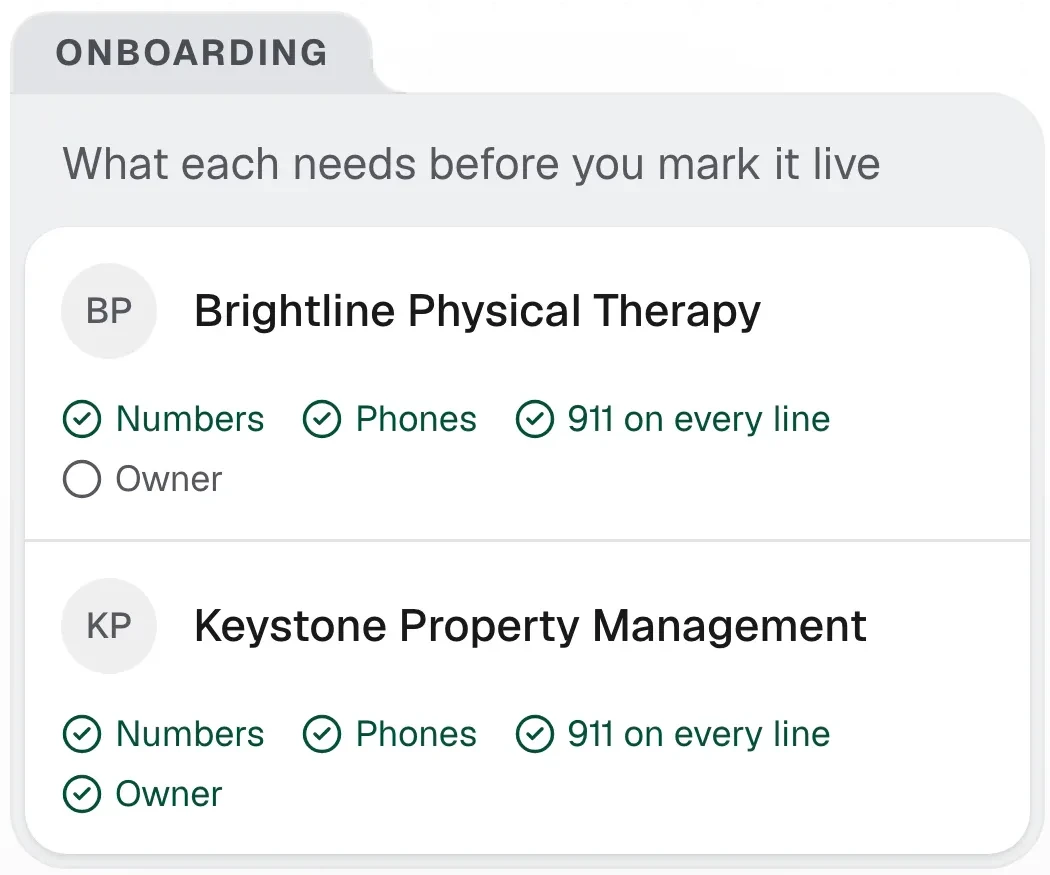
Mark live, in your partner portalHome lists what each account in Onboarding still needs. Your team marks each account live when you’re ready; a port doesn’t, and nothing goes live on its own.
Before the first port: the whole list
- Your wholesale quote and agreement
- Your partner account: logo, support contact, team logins and defaults
- Pilot customers chosen, with the criteria they must pass
- For each of them: numbers with the current carrier’s account details and a signed authorization
- The registered 911 address for every line
- Every phone checked against the supported catalog
- Escalation contacts on both sides
What sets the pace.
No two migrations run to one timeline. We date the plan group by group, as any ports are scheduled, rather than quoting one window.
The dates
The losing carrier sets each port’s date.
Your partner portal shows it once the port is Scheduled. A rejected request gets its date only after it’s corrected and sent again.
What decides when a group moves
Outside the platform
- The losing carriersThe date each port moves, and any request they reject.
With you and your customers
- Accurate recordsDetails exactly as the current carrier holds them.
- Your customersTheir busy hours, and their sign-off.
Agreed between us
- The pilotWhether it met the criteria you agreed.
- Group sizeHow many customers, numbers and current carriers move together.
And each group moves only once it’s ready before its port date.
Plan your first group with us.
Bring a rough count of customers and numbers, your current carriers and platform, the phone models in use, and who you’d move first. We’ll plan the pilot with you.