Who can reach your customers’ accounts, and what each role allows.
Your team works in the partner portal as Admin, Staff or Billing. Your customers run their own accounts, and our desk collects call traces and recordings only in windows they approve.
Three roles across every account you serve.
Admin and Staff The same day-to-day work
+ Admins only
Billing Reads, with call counts
No call details, Open portal or team
- One role, every accountA role covers every account you serve; there are no per-account assignments.
- Two-step sign-inEvery login on your team signs in with two steps, a passkey or an authenticator app, and can’t use a customer’s own sign-in page: Open portal is the only way in, and your Admins can end any open one.
- Your customers’ roles are their own.Owners, admins and staff inside each business, managed by its own owners and admins.
Every permission, side by side
| Your team can | Admin | Staff | Billing |
|---|---|---|---|
| See every account, its numbers, phones and 911 | Yes | Yes | Yes |
| Create accounts and change their services, numbers, phones and ports | Yes | Yes | No |
| Invite, reset, unlock and change a customer’s logins | Yes | Yes | No |
| Suspend an account, and resume it | Yes | Yes | For non-payment only |
| Close an account | Yes | No | No |
| Call logs, call pages and live calls | Yes | Yes | Counts only |
| Open a customer’s portal (Open portal) | Yes | Yes | No |
| Alerts and new-account defaults | Yes | Yes | No |
| Activity | Yes | Yes | Yes |
| Their own password, two-step and sessions | Yes | Yes | Yes |
| The team, its sign-in rules, and ending its open customer portals | Yes | No | No |
Recordings live in the customer’s account.
Three ways reach a customer’s calls, each with its own rule and its own record. The partner portal shows a call’s details and stops there.
Your teamAdmin and Staff; Billing sees counts
Partner portal
Stops outside the accountCall details onlyWho, when, how long, the outcome and route, quality, the device and the node. Never a recording or a transcript.In your Activity
Your teamAdmin and Staff
Open portal
Into the accountEvery recorded call, at any timeInside the customer’s portal as Support, as its owners can: play, download and read the transcript.In your Activity, and in theirs as Support
Our deskCarrier Grade
Troubleshooting window
Into the accountTraces, captures and recordingsOnly on the days the customer approves.In their Help & support history
Your customer’s own people
Owners and admins play every recorded call.
Staff play what the owner allows: no calls (the default), their own calls, or every call.
Whoever can’t play a call can’t read its transcript. The business decides which calls are recorded.
Each side keeps its own record.
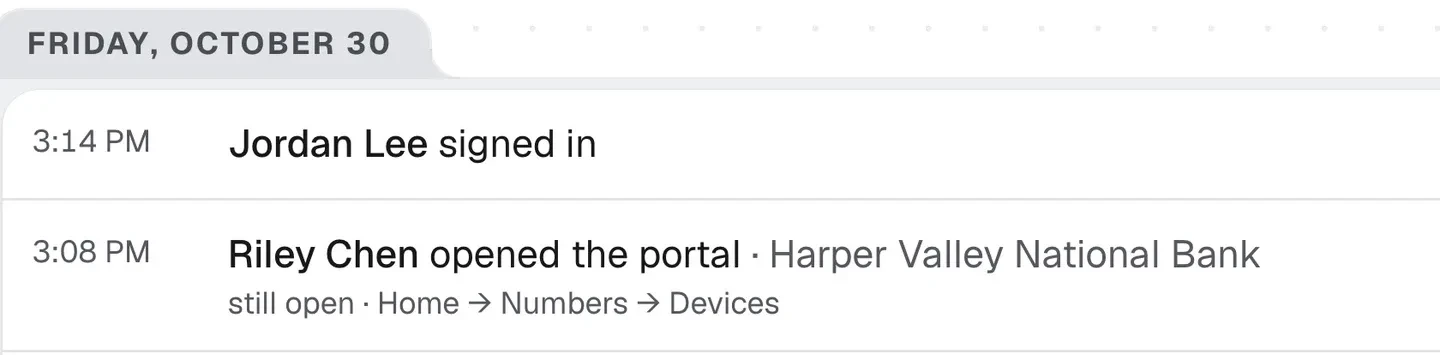
Your partner portal’s ActivityEvery change your team makes, every search and opened call, and each customer’s portal opened, with how long and which pages.
Activity
Your customer’s ActivityTheir sign-ins and changes, and each play or download from their portal, your team’s shown as Support.
Activity
Troubleshooting waits for the customer’s approval.
Our desk troubleshoots a customer’s calls only inside a window they approve, on the days they choose.
Approved
By the customer’s owner or admin
In their own portal; their staff can’t. Your partner login can’t approve on a customer’s behalf.
Open
Only on the days they chose
Days from today to the day after, until 8 PM for a business or 10 PM for a home. The six-digit code they send you ties your ticket to their approval and opens nothing by itself.
Ended
By the customer, at any time
From Support, or on its own after the last day. Their history keeps the request, the approval and who ended it.
Kept
Deleted within 72 hours
The window is our desk’s. Your Admin and Staff reach recorded calls through Open portal without one.
The authorization in full
- Who
- Northmere and its underlying service providers and vendors
- What
- Call traces, packet captures and recordings. Calls may be reviewed live or afterwards by automated analysis tools and/or authorized support staff, including provider and vendor staff.
- When
- Only the days you choose, 8 AM to 8 PM
- Kept
- Troubleshooting recordings, analytics and captures for up to 72 hours after the session ends, including if you end it early. Your report and this authorization stay in session history.
- Control
- Cancel or end the session at any time from Support. It ends on its own after the last day you choose.
The approver confirms
- I’m authorized to approve troubleshooting for this account.
- I’ve told the affected office users and arranged the required caller notices and permissions.
- I authorize the troubleshooting described above on the days I chose.
A home reads the same, with its own hours and “the people in my home who use this line” in place of office users. A business’s owners and admins, or a home’s owner, may approve, and may add up to five example calls from their call history.
Calls on their way to our voice node.
Call setup and audio are protected separately, on each of the two paths a call takes to reach us.
Desk phones and PBXsOn the customer’s site
Call setupTLS
AudioSRTP
The device or PBX must support and be set for it.
Everyline apps and the browseriPhone, Android, Mac and portal calling
WebRTC
Media serviceOn our account
AudioSRTP required
Our voice node
Transport settings
- The company, for its desk phones
- UDP, TCP, TLS, or TLS with SRTP
- One desk phone
- The company’s choice, or one of its own
- A SIP trunk to the customer’s PBX
- UDP, TCP or TLS; SRTP off, optional or required
- The Everyline apps and the browser
- WebRTC to the media service; SRTP required between it and our voice node
- Privacy PolicyIronSIP LLC’s, for the services
- Acceptable Use PolicyWhat the services may not be used for
- This site’s privacy noticeWhat carriergrade.com collects
Bring your security questions and the accounts you serve.
We’ll walk through roles, recording access and troubleshooting approval with your team, and the transport settings, voice nodes and hosting behind the accounts you serve.